
Showing posts with label iOS. Show all posts
Showing posts with label iOS. Show all posts
iOS 4.3.3 is out, location tracking 'fix' in tow

Untethered Jailbreak Working on iOS 4.3.2 – Dev Team To Release Updated iOS 4.3.2 Jailbreak Tool.

We have some great news that will make the entire iPhone jailbreak community happy. German iPhone hacker and iPhone security specialist, the hacker who held responsible of the untethered jailbreak exploit used on iPhone Dev Team’s PwnageTool and Redsn0w as well as iH8sn0w Sn0wbreeze jailbreak tool, accounted via Twitter that his untethered jailbreak vulnerability still works on the recently released iOS 4.3.2. Meaning, you will be able to untether jailbreak your iPhone 4, iPhone 3GS, iPod Touch 4G, iPod Touch 3G, and iPad 1 running on iOS 4.3.2 using either (updated version) PwnageTool (exclusively for Mac OS X users), Redsn0w (for Mac OS X and Windows users) and Sn0wbreeze (exclusive for Windows users) in the near future.
According to Esser, his first generation iPad is currently running on a untethered jailbreak iOS 4.3.2. And he might render his untethered jailbreak exploit to the iPhone Dev Team by next week to incorporate it to their PwnageTool and Redsn0w, as well as Sn0wbreeze software jailbreak tool.
Here’s what Esser tweeted:
Apple has been nice. I just verified that the untether vulnerability is not fixed in iOS 4.3.2 – my Ipad 1 is running untethered jailbroken
Of course the public untether binaries will not work with iOS 4.3.2 – I have to generate new untether binaries with new dyld/kernel offsets
I won’t be able to create all the untether binaries before sunday, because I will be on planes, …
The dev-team cannot produce the untether binaries on their own, because they don't have the source code to the untether exploit.
Jailbreak iPhone iOS 4.3.2 Using PwnageTool and Redsn0w Confirmed.

As most of you probably know by now, the Cupertino, California-based Apple rolled out their latest version of iPhone firmware – the iOS 4.3.2 – for iPhone 4 (iOS 4.2.7 for Verizon CDMA iPhone 4), iPhone 3GS, iPod Touch 4G, iPod Touch 3G, iPad 2, and iPad 1. As always, we strongly recommend, if you are an iPhone unlocker, to STAY AWAY from this software update and wait for the official announcement of the iPhone Dev Team regarding the new iOS for our beloved products. iPad 1 and iPad 2 users who don’t care about jailbreaking and unlocking their device can now update to iOS 4.3.2 to fix numerous issues o heir 9.7 inch tablet PC, such as the #G network connection and frozen FaceTime video call issues.
Unsurprisingly, moments after the release of the new iOS, numerous reports surfaced that the iOS 4.3.2 for iPhone can be jailbroken using iPhone Dev team’s PwnageTool 4.3 with PwnageTool Bundle (for Mac OS X users) and Redsn0w 0.9.6 (for Mac Os X and Windows users). However, it seems like apple fixed the untethered jailbreak exploit used on both jailbreak tool as they offer tethered jailbreak only. But for those who know what they are doing, then you can jailbreak iOS 4.3.2 on your iPhone, iPad, or iPod Touch running using PwnageTool Bundle 4.3.2. The software package includes the latest version of PwnageTool, as well as the tethered boot app to boot your device to tethered jailbreak state. You can follow our step-by-step guide posted here using PwnageTool 4.3 with PwnageTool bundle.
iOS 4.3.2 And iOS 4.2.7 Released, Brings Security Patches and Address iPad 2 Issues.

Surprised? Well, not at all. We already expected that Apple is going to release this version of iOS to fix numerous issues on their 9.7 inch revolutionary tablet PC.
The Cupertino, California-based Apple today launches the iOS 4.3.2 packed with multiple necessary improvements and bugs fixes to Apple's operating system for mobile devices. The new iOS 4.3.2 build 8H7 is available for iPhone 4, iPhone 3GS, iPod Touch 4G, iPod Touch 3G, iPad 1, and iPad 2 GSM model. While the CDMA iPad 2 will receive iOS 4.3.2 build 8H8. A separate iOS 4.2.7 build 8E303 is also available for the CDMA iPhone 4.
The software update was intended to address numerous iPad 2 issues, such as the FaceTime blank or frozen video, 3G network, and some security patches.
iOs 4.3.2 To Fix Various iPad 2 Issues – iOS Jailbreakers Beware.

There were numerous reports and rumors suggesting that the Cupertino, California-based Apple is gearing up to release the iOS 4.3.2, the latest version of iPhone operating system, to fix numerous issues and security holes in their recently released 7.7 inch iPad tablet PC. Recently, we have reported that some Verizon iPad 2 Wi-Fi + 3G users are having some hard time to connect over Verizon wireless’ 3G network. Now, BGR is reporting that Apple is gearing up to release the iOS 4.3.2 to fix a new bug in iPad’s FaceTime camera, as well as the aforementioned 3G network and security issues.
BGR report:
One of our Apple sources has just let us know that Apple’s iOS 4.3.2, due within the next week or so, will fix the issues we’ve been hearing about with some Verizon iPad 2 models. Additionally, the new update is said to contain a fix for FaceTime in addition to security fixes for things like WebKit vulnerabilities and other minor changes.
iPad crashes on syncing since updating to iOS4.2
I have tried deleting the backup, restoring, it still happen every sync. Then I open iTunes. From the Edit menu, choose Preferences > the Devices tab, and click the "Reset Sync History". Now it seems to be working again.
The Iterative Web App: New Stacked Cards Interface for Gmail on iPad
In April 2009, we announced a new version of Gmail for mobile for iOS and Android. Among the improvements was a complete redesign of the web application's underlying code, which allows us to more rapidly develop and release new features that users have been asking for, as explained in our first post. Today’s topic for the The Iterative Web App, a series where we continue to release features for Gmail for mobile, is the Stacked Cards Interface on the iPad.
When we announced our new interface for Gmail on the iPad, we requested feedback on how we could improve this experience for tablet devices. In June, we responded with a new compose screen. Today, we’re addressing the top feedback by launching a new “stacked card” interface for selecting and managing multiple conversations.
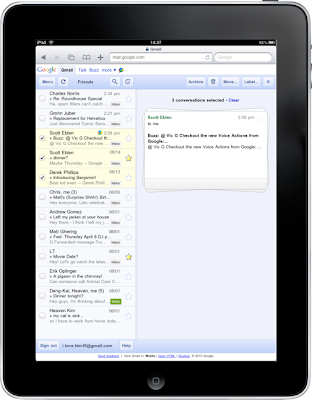
In the past, performing actions on selected conversations was awkward. There were two similar toolbars on the screen: one on the bottom left and the other on the top right. The former affected the selected conversations, while the latter affected the currently open conversation. Since the toolbars’ buttons looked similar, it was easy to mistakenly use the wrong toolbar. Sound confusing? It was.
In the new interface, selected conversations are displayed stacked on the right panel for easy organizing, archiving or deleting. The second toolbar is gone so it’s always clear which conversations you’re working with.
When we announced our new interface for Gmail on the iPad, we requested feedback on how we could improve this experience for tablet devices. In June, we responded with a new compose screen. Today, we’re addressing the top feedback by launching a new “stacked card” interface for selecting and managing multiple conversations.

In the past, performing actions on selected conversations was awkward. There were two similar toolbars on the screen: one on the bottom left and the other on the top right. The former affected the selected conversations, while the latter affected the currently open conversation. Since the toolbars’ buttons looked similar, it was easy to mistakenly use the wrong toolbar. Sound confusing? It was.
In the new interface, selected conversations are displayed stacked on the right panel for easy organizing, archiving or deleting. The second toolbar is gone so it’s always clear which conversations you’re working with.
Should I Jailbreak my iPad, iPhone or iPod?
Reasons why you should jailbreak?
(1) It is now legal.
First of all, it is LEGAL to do that (under Digital Millennium Copyright Act - DMCA of 2010).
(2) Access to more applications.
You can download or purchase third-party applications or games that are not approved by Apple. After you jailbreak your iPad, iPhone or iPod, there is an application called “Cydia” which consists of list of third-party applications. So jailbreaking your iDevices not only limit yourself to applications that approved by Apple.
(3) It is reversible.
Anything that goes wrong with your jailbreak, you still can reverse back to the original firmware. This also means Apple claims it to void your warranty is no longer a concern. To do that, you just need to “Press Restore” in your itunes. There is an option to backup your data before you restore but what I wouldn’t want to do that as I”m not sure whether what would happen to your non-approved applications after you restored them back to the original firmware. Just make a clean restore will do…
Reasons why you should NOT jailbreak – Really?
(1) Download paid applications for FREE
A website such as “AppTrackR dot ORG”and “iPhoneCake dot COM” are pretty famous for you to download cracked applications or games. However, you shouldn’t jailbreak your iPad, Iphone or iPod just because you can download those paid applications for free. That is in fact ILLEGAL in my opinion. So, don’t do that! :) Of course this is subject to argument as some said this is in fact legal – something similar to “thepiratedbay dot org”? Well, make your own judgement! I would recommend you NOT to do that.
(2) Voiding Warranty
I’m not sure if this is still valid as you can now reverse back to original firmware. Honestly, I don’t think you need to reverse back because I’ve never heard people complaining any issues (due to hardware failure) after they jailbreak their iDevices. So this is what I will recommend you to do before jailbreak your iDevices:
- Make sure all the hardware functionality are working (e.g. microphone, speaker, wifi, audio jack in (headphone, earphone) and etc.).
- Try to play around with your original iPad for a week before you jailbreak, then it should be safe enough that you shouldn’t encounter any hardware failure.
(3) Untethered jailbreak has not been released
I mention this is because this was one of the reasons I worried before I jailbreak my iPad. In case you do not aware, there are 2 type of jailbreaks – tethered and untethered jailbreaks. Tethered jailbreak is usually released first which means you need to boot iniPad, iPhone or iPod from your Windows or Mac. Well, this seems troublesome but you shouldn’t worry at all because you shouldn’t reboot your iPad very often. What you really want to do is to close those unused applications:
- Double touch your “Home” button and it shows you a list of applications run at background.
- Touch and hold the application until you see the negative sign (i,e. “-“) on the upper left of the application icon.
- Touch the “-“ sign to close those applications. Go back to home screen by touching the “home” button again.
(4) Security Issues
You worry about your iPad security issue because those applications that you install no longer are certified by Apple. But, let me ask you this – have you every installed applications that are not from Microsoft when you usewindows OS? If yes, then you shouldn't worry much about security issues in iOS (Apple) then.
Jailbreaking is just enable enable your iDevices to support third-party applications and not only limited to applications that are certified by Apple. This is exactly same with installing your MicrosoftWindows OS in your laptop by default which allow you to install any kind of applications. So you shoudln’t worry much about this.
If you really concern on security, please pay attention to the applications that you download and make sure it is from the reliable source just like the way you do in Windows. For me, I’ve never trusted Safari web browser, so I will never use sensitive information (e.g. email account, credit card, bank account) with my iPad.
How To Jailbreak Your iPhone 4, iPhone 3GS Using Sn0wbreeze For Windows (iOS 4.3.2)

iH8sn0w had released Sn0wbreeze 2.6 few days back, which allows users who want to jailbreak and also unlock their iPhone to update their iPhone with a pre-jailbroken iOS 4.3.2 while preserving the baseband from getting upgraded so that it can be unlocked using Ultrasn0w.
This guide will provide iPhone 4 and iPhone 3GS users with step-by-step instructions to update and jailbreak their iPhone with iOS 4.3.2 while preserving their iPhone's baseband.
Some important points before the step-by-step instructions:
- Please note that jailbreaking your iPhone may void its warranty so proceed with caution.
- Don’t forget to backup your iPhone before you proceed. You can refer to this post for instructions on how to backup your iPhone.
- Please ensure that your iPhone has enough charge.
- This guide is only for iPhone 4 and iPhone 3GS users.
- iPad, iPod Touch and iPhone users who don't care about unlocking or preserve their iPhone's baseband can use Redsn0w to jailbreak their iOS device on iOS 4.3.2 as it is a lot easier.
- Sn0wbreeze is only works on Windows. Mac OS X users should use PwnageTool. Checkout this step-by-step guide.
- Users who want to unlock their iPhone:
- Sn0wbreeze does not unlock your iPhone.
- You can use Ultrasn0w to unlock your iPhone after you have successfully updated and jailbroken your iPhone with iOS 4.3.2.
- But there is a catch. Ultrasn0w 1.2.2 can only unlock the following basebands (you can check the baseband by going to Settings –> General –> About –> Modem Firmware):
- iPhone 4 baseband - 01.59.00
- iPhone 3GS basebands - 04.26.08, 05.11.07, 05.12.01, 05.13.04 and 06.15.00.
-
- So if your iPhone is currently on baseband mentioned above then Sn0wbreeze will allow you to create a custom pre-jailbroken iOS 4.3.2 and preserve the baseband so that you can unlock your iPhone using Ultrasn0w 1.2.2.
- If you accidentally upgraded your iPhone 4 with iOS 4.3.2/iOS 4.3.1/iOS 4.3/ iOS 4.2.1/ iOS 4.1 then its baseband would have got upgraded to 02.10.04/ 03.10.01/ 04.10.01. Unfortunately, 02.10.04, 03.10.01, 04.10.01 basebands for iPhone 4 cannot be unlocked nor can it be downgraded currently.
- Similarly, if you accidentally upgraded your iPhone 3GS with iOS 4.3.2/iOS 4.3.1/iOS 4.3/ iOS 4.2.1/ iOS 4.1 then its baseband would have got upgraded to 05.14.02/ 05.15.04/ 05.16.01/ 05.16.02. Unfortunately, 05.14.02, 05.15.04, 05.16.01, 05.16.02 basebands for iPhone 3GS cannot be unlocked nor can it be downgraded currently.
-
- After the jailbreaking process is complete, do not forget to checkout our article on tips to keep your iPhone secure. Also, remember to change the password of your jailbroken iPhone.
- Please read the instructions carefully especially the ones highlighted in bold.
If you meet the requirements mentioned above then you can proceed with the step-by-step instructions to jailbreak your iPhone using Sn0wbreeze.
Step 1: Download Sn0wbreeze 2.6 from here and save it in a folder named "Sn0wbreeze" on your desktop.
Step 2: You also need to download the iOS 4.3.2 firmware file (use Firefox or Chrome to download the firmware file instead of using Internet Explorer or Safari):
iOS 4.3.2 firmware file for iPhone 4 users (iPhone3,1_4.3.2_8H7_Restore.ipsw)
iOS 4.3.2 firmware file for iPhone 3GS users (iPhone2,1_4.3.2_8H7_Restore.ipsw)
Step 3: Extract Sn0wbreeze from the zip file. Double click on the Sn0wbreeze icon to launch the application. You will get a dialogue informing you that the software is not for commercial use. Click OK button to continue. Then the Credits dialog box, click on the Close Credits button to continue.
Step 4: Click on the blue arrow button at the bottom right side to proceed.
Step 5: Click on the browse button and select the appropriate firmware file that you had downloaded in step 2 (iPhone 4 users: iPhone3,1_4.3.2_8H7_Restore.ipsw, iPhone 3GS users: iPhone2,1_4.3.2_8H7_Restore.ipsw) .
Step 6: Sn0wbreeze will verify the firmware file. Once the firmware file is verified, it will you inform you that the IPSW is verified and also the iPhone model. You will be able to click on the blue button to proceed. For iPhone 3GS users, it will request you to select whether your iPhone 3GS comes with the old or new bootrom. If you don't know, click on the Detect it for me button. You need to connect your iPhone and follow the on-screen instructions.
Step 7: After selecting the bootrom, you will be prompted with three options:
iPhotographer: Introductions, Filterstorm
Photography on iOS has come a long way. We're here to help you learn more about it.
We here at 148Apps would like to welcome you to the new iPhotographer column. What exactly is the point here? That is a mighty fine question.
We will bring you tips, tricks, and reviews geared directly at photographers of all skill levels. There will be tips and tricks on how to perform tasks on an iOS device that just might have you questioning the need for a laptop. We might even delve into some photo techniques and how these techniques can take your iPhone photography skills even further.
Now the question becomes one of credentials. I am an IT professional who ditched his education in computers for life behind a camera. I am a self-taught photographer who is looking to continue to grow my skill set while helping others along the way.
My name is Chris Nitz and I started my own photography business. I have read more articles on shutter speeds, rule of thirds, lighting, and white balance than I can ever care to remember. I have a passion to see the world from a viewfinder. I am by no means a photography elitist or so called expert. I’m here to learn right along with you, and encourage your comments and suggestions at the end of every article.
 Let’s get to the meat of this column with a small review. This review is trimmed down, as you will see this app show up in future articles. The app I am referring to is Filterstorm
Filterstorm takes programs like Aperture or Lightroom and brings them right onto your iPad. Filterstorm contains all the goodness of tonal curves, noise reduction, saturation, and so much more right to your finger tips.
Filterstorm’s interface is easy on the eye while maintaining simplicity in navigation. Firing up the app will have the basic controls on the left side of the screen. Loading up a photo is as easy as choosing it from your photo library. Those with a camera connection kit can even bring in photos straight off a memory card.
Once the photo is in the app the real work begins. All edits are made without destroying the original photo. There is even an apply button you have to hit before the changes are made. You can easily test how the changes will look without racing for the undo option.
iPhotographer: Photo Posting For The Photog On The Go
You can really accomplish everything from photo-shoot to posting the final product right in iOS!
iOS has brought users a great all-in-one stop shop for taking photos, manipulating them, posting them online, and composing a whole blog post over that spectacular shot. In fact, because the iPad and iPhone have such great apps, there are some pros that don’t even carry a laptop with them onto photo shoots. Everything they need for quickly getting photos to the world can easily be handled right on these magical devices. Let’s look at just a few tools that make this possible.
Shooting The Photo
The first major change is just how the iPhone takes photos. Long gone are boring, under/over exposed, bland photos. Now we have HDR embedded right in the included camera app. If this is not powerful enough for you, apps like TrueHDR and Pro HDR can take your HDR photos to higher levels than what is already available.
The first major change is just how the iPhone takes photos. Long gone are boring, under/over exposed, bland photos. Now we have HDR embedded right in the included camera app. If this is not powerful enough for you, apps like TrueHDR and Pro HDR can take your HDR photos to higher levels than what is already available.
Maybe you like adding a bit of flair to your photos — this is where wonderful apps like Hipstamatic come into play. I use this app all the time when I am shooting fun setups with all my Lego People. The various lenses and films all add up for some fun, and unique shots that I have thought of recreating with my DSLR and Photoshop.
Processing Without Photoshop
The next part of any good shot is the post-processing step, and yes, just about any photo worth its weight in metallic paper is photoshopped in some form or another. This may be as simple as removing dust particles or increasing saturation levels, to full-blown photo manipulations in layers that a slice of Tiramisu would be jealous of.
The next part of any good shot is the post-processing step, and yes, just about any photo worth its weight in metallic paper is photoshopped in some form or another. This may be as simple as removing dust particles or increasing saturation levels, to full-blown photo manipulations in layers that a slice of Tiramisu would be jealous of.
Apps like Filterstorm, or Photoshop Express, allow for some basic photo-editing while away from your computer. Filterstorm even allows you to make adjustments in that all too familiar layer workflow so many of us are comfortable with. Are these apps going to allow you to completely avoid using Photoshop on a laptop? Of course not. However, what you do have is the ability to post process while sipping on a beer at the local pup without all the worry of dropping a pint on your precious laptop.
Uploading Those Shots
Uploading photos does have a few gotchas, as there is not one single great app to handle the huge number of uploading services. There are apps to handle some of the most popular sharing services like Facebook, Smugmug, Flickr, Twitter, and Picasa, however. Worst-case scenario is you have to email your photo to a client or a photo sharing service. This is undoubtedly one of the bigger downfalls of doing photography with the iOS devices, rather than a laptop.
Uploading photos does have a few gotchas, as there is not one single great app to handle the huge number of uploading services. There are apps to handle some of the most popular sharing services like Facebook, Smugmug, Flickr, Twitter, and Picasa, however. Worst-case scenario is you have to email your photo to a client or a photo sharing service. This is undoubtedly one of the bigger downfalls of doing photography with the iOS devices, rather than a laptop.
Composing A Photo Blog Post
Once your photo is captured, processed, and uploaded, you just might want to quickly write up a small blog post about the photo. There are apps to allow you to do just that as well, but again, this will be limited to your choice of blog host. Some services may even support one iOS device over another device, as is the case with SquareSpace only supporting the iPhone at this time. There are applications like BlogPress and WordPress that can be used to update blogs, too. A tip here: if you can’t post from an app, type it up, email it to someone you trust, and have them add the blog posting. We all know that content is the key to keeping your viewers coming back.
Once your photo is captured, processed, and uploaded, you just might want to quickly write up a small blog post about the photo. There are apps to allow you to do just that as well, but again, this will be limited to your choice of blog host. Some services may even support one iOS device over another device, as is the case with SquareSpace only supporting the iPhone at this time. There are applications like BlogPress and WordPress that can be used to update blogs, too. A tip here: if you can’t post from an app, type it up, email it to someone you trust, and have them add the blog posting. We all know that content is the key to keeping your viewers coming back.
iPhotographer: Better Photos With The Rule Of Thirds
Time to apply some photography rules to your iPhone camera for better photos.
 You are now ready to elevate your iPhone photos to the next level. After all, the internet is full of quick snapshots, party pics, and other miscellaneous photos that do not do iPhone photography justice. How do you take this budding art and make it a richer photographic experience? Start by following the most fundamental of all photography laws: The Rule of Thirds.
What is the rule of thirds you ask? Without diving into the science of how the human eye works, this rule is about simply breaking your photos into thirds, and then using those thirds to your advantage. Utilize this rule in two ways for richer photos. First, pretend there is a TIC-TAC-TOE board on whatever you are going to photograph. Now, place your subject in any of the four intersecting points of this grid. If you have multiple subjects, fret not, try to place each subject in one to two of the intersecting points. The second part of this rule applies to breaking your photo into thirds. Let us say you are going to shoot a sunset over a lake nestled in a forest. Place the lake in the bottom third, the tree line should consume the middle third, and the sky the top third.
 Maybe you can’t get the rule of thirds right away in your shot, have no worries, as you can apply the rule of thirds in a bit of post processing. Apps like Filterstorm and Photoshop Express will throw up a grid when you go to rotate your images. Use this grid to help visualize where images to fit into this rule, and if some cropping is going to be necessary. It may not be a perfect solution, but it will help you end up with better photos.
There are times you may break this simple rule, but when in doubt, stick to the rule. There is a reason this rule has stood the test of time, equipment, and improving technology. The next time you are just going to snap a photo with your iPhone, apply this rule, and watch as your photos become much more interesting.
Boosting In-App Purchases: Best Practices for Android Developers
In-app purchasing (or in-app billing) on the Android platform is one of the most attractive ways to monetize a mobile app. Android developers now have access to a source of previously unavailable revenue. They can offer premium features, including unlocked content, paid downloads, upgrades and expansions for games and content packages.
As Android developers start to integrate in-app billing into their mobile offerings, they should know what works and what doesn’t. Drawing from my company’s experience helping thousands of customers optimize their products with in-app purchase features, I’ve compiled this list of best practices.
As Android developers start to integrate in-app billing into their mobile offerings, they should know what works and what doesn’t. Drawing from my company’s experience helping thousands of customers optimize their products with in-app purchase features, I’ve compiled this list of best practices.
The Dos
- Do make it clear in the description that the downloaded app can be augmented with additional features via in-app purchase. This is an app’s first opportunity to market future add-ons and they should let users know upfront that the app is feature-rich and expandable.
- Do make the purchase process super obvious to the user. Users should never feel they purchased something by accident, nor should they be unsure what’s going to happen once they click the purchase button. Plus, refunds are a pain to process and should be avoided at all costs.
- Do test different pricing. Try to offer a variety of items at different prices. A user may not want to fork over $20 for a fully featured app, but it’s possible that they will pay for a lite version at a reduced price. Don’t take the option off the table.
- Note: Pricing is one area where iOS and Android differ. Apple prices by “Tiers,” with tier 1 starting at $.99. Apple then converts that into the local currency for international markets. Android has no tier system; developers set an arbitrary amount. Android just deployed currency conversion, but not everything is supported. Developers should pay careful attention to Google’s guidance on this.
BET's 106 & Park app impresses with promotion and social network integration

Amnesty International releases iOS game to raise money and awareness for human rights

But the most interesting thing about this app is the story behind it.
Verizon iPhone selling faster than the HTC Thunderbolt

During Verizon's earnings conference call, the wireless carrier confirmed it sold 2.2 million iPhones in the six weeks the handset was available on the network. The carrier also confirmed the 4G-enabled HTC Thunderbolt sold 260,000 in the two weeks it was available. On average, then, Verizon was selling about 360,000 iPhones and 130,000 Thunderbolts per week.
Twitterrific 4.1 for iOS released, includes username auto-complete and spam reporting
Here is something to write up to 140 characters about. The Iconfactory deployed version 4.1 of its award winning Twitter client, Twitterrific, to the App Store on Thursday. The new version offers users a smorgasbord of enhancements and bug fixes.

Macworld's "Twitter Client of the Year" in 2010 and a favorite among many of us here at TUAW, Twitterrific is available for free as an ad-supported version. An in-app upgrade allows customers to ditch the advertisements and manage multiple Twitter accounts for US$4.99. The app is compatible with iPhone, iPod touch, and iPad and requires iOS 4.0 or later.
Macworld's "Twitter Client of the Year" in 2010 and a favorite among many of us here at TUAW, Twitterrific is available for free as an ad-supported version. An in-app upgrade allows customers to ditch the advertisements and manage multiple Twitter accounts for US$4.99. The app is compatible with iPhone, iPod touch, and iPad and requires iOS 4.0 or later.
Got an iPhone or 3G iPad? Apple is recording your moves
A hidden file in iOS 4 is regularly recording the position of devices.
Today at Where 2.0 Pete Warden and I will announce the discovery that your iPhone, and your 3G iPad, is regularly recording the position of your device into a hidden file. Ever since iOS 4 arrived, your device has been storing a long list of locations and time stamps. We're not sure why Apple is gathering this data, but it's clearly intentional, as the database is being restored across backups, and even device migrations.
The presence of this data on your iPhone, your iPad, and your backups has security and privacy implications. We've contacted Apple's Product Security team, but we haven't heard back.
What makes this issue worse is that the file is unencrypted and unprotected, and it's on any machine you've synched with your iOS device. It can also be easily accessed on the device itself if it falls into the wrong hands. Anybody with access to this file knows where you've been over the last year, since iOS 4 was released.
Today at Where 2.0 Pete Warden and I will announce the discovery that your iPhone, and your 3G iPad, is regularly recording the position of your device into a hidden file. Ever since iOS 4 arrived, your device has been storing a long list of locations and time stamps. We're not sure why Apple is gathering this data, but it's clearly intentional, as the database is being restored across backups, and even device migrations.
The presence of this data on your iPhone, your iPad, and your backups has security and privacy implications. We've contacted Apple's Product Security team, but we haven't heard back.

What makes this issue worse is that the file is unencrypted and unprotected, and it's on any machine you've synched with your iOS device. It can also be easily accessed on the device itself if it falls into the wrong hands. Anybody with access to this file knows where you've been over the last year, since iOS 4 was released.
Subscribe to:
Posts (Atom)